
When a student clicks the Pay Now button on any pending invoice, they are transitioned to the dedicated StudentPayment checkout page.
This page is deliberately designed to reduce friction, build trust, and clearly communicate exactly what the student is paying for before they enter any sensitive financial information.
1. Building Trust and Security
Handling money requires trust. The header of the checkout page immediately establishes a secure environment:
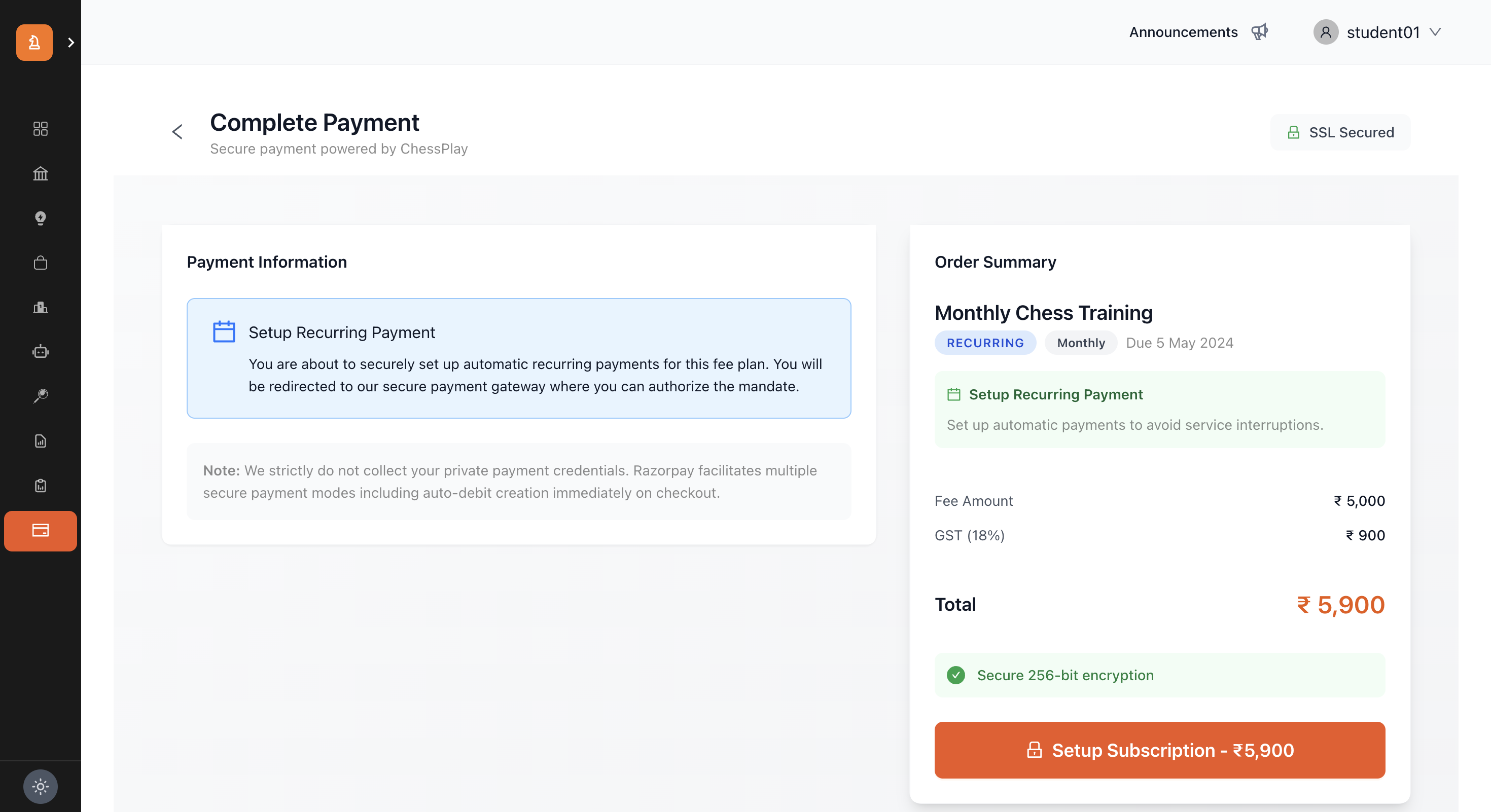
A prominent SSL Secured badge with a green lock icon reassures the user.
A subtle note states "Secure payment powered by ChessPlay" (or the relevant organizational brand).
In the main content area, a security note explicitly clarifies: *"We strictly do not collect your private payment credentials. Razorpay facilitates multiple secure payment modes."*
A final 256-bit encryption badge sits directly above the final Pay button.
2. Dynamic Payment Information Context
The left column of the page changes dynamically based on the *type* of payment the student is attempting to make.
Scenario A: One-Time Payment
If the student is paying for a standard invoice (like a tournament fee) or paying a recurring invoice that *already* has an active mandate:
An info alert titled One-Time Payment appears.
It explains that the user will be redirected to the gateway to check out using standard methods (UPI, Cards, etc.) for a single transaction.
Scenario B: Setting up a Recurring Subscription
If the student is paying the *first* invoice of a new Recurring Plan, the system recognizes that it needs to establish a billing mandate (Auto-Debit).
An info alert titled Setup Recurring Payment appears, featuring a Calendar icon.
It explicitly informs the student: "You are about to securely set up automatic recurring payments... you can authorize the mandate."
This transparency is critical so the student is not surprised when their bank asks them to authorize future deductions.
3. The Order Summary Breakdown
The right column features a card locked to the screen, detailing the exact financial breakdown.
Plan Context
Displays the bold name of the plan being paid for.
Shows helpful badges indicating if it is "Recurring" or "One-Time", the billing cycle (e.g., "Monthly"), and the original Due Date.
If a mandate is being set up, a green highlight box reinforces: "Set up automatic payments to avoid service interruptions."
Mathematical Breakdown
Fee Amount: The base cost of the service.
GST ([X]%): If the administrator enabled GST on this plan, the exact percentage rate (e.g., 18%) is shown alongside the calculated tax amount.
-
Total: The final sum of the base fee plus taxes, highlighted in a bold orange typography.
4. The Checkout Execution (Razorpay Integration)
At the bottom of the Order Summary sits the primary Call to Action button. The text on this button is dynamic:
If setting up a mandate: Setup Subscription - ₹[Total]
If standard payment: Pay ₹[Total]
The Gateway Overlay
When the button is clicked:
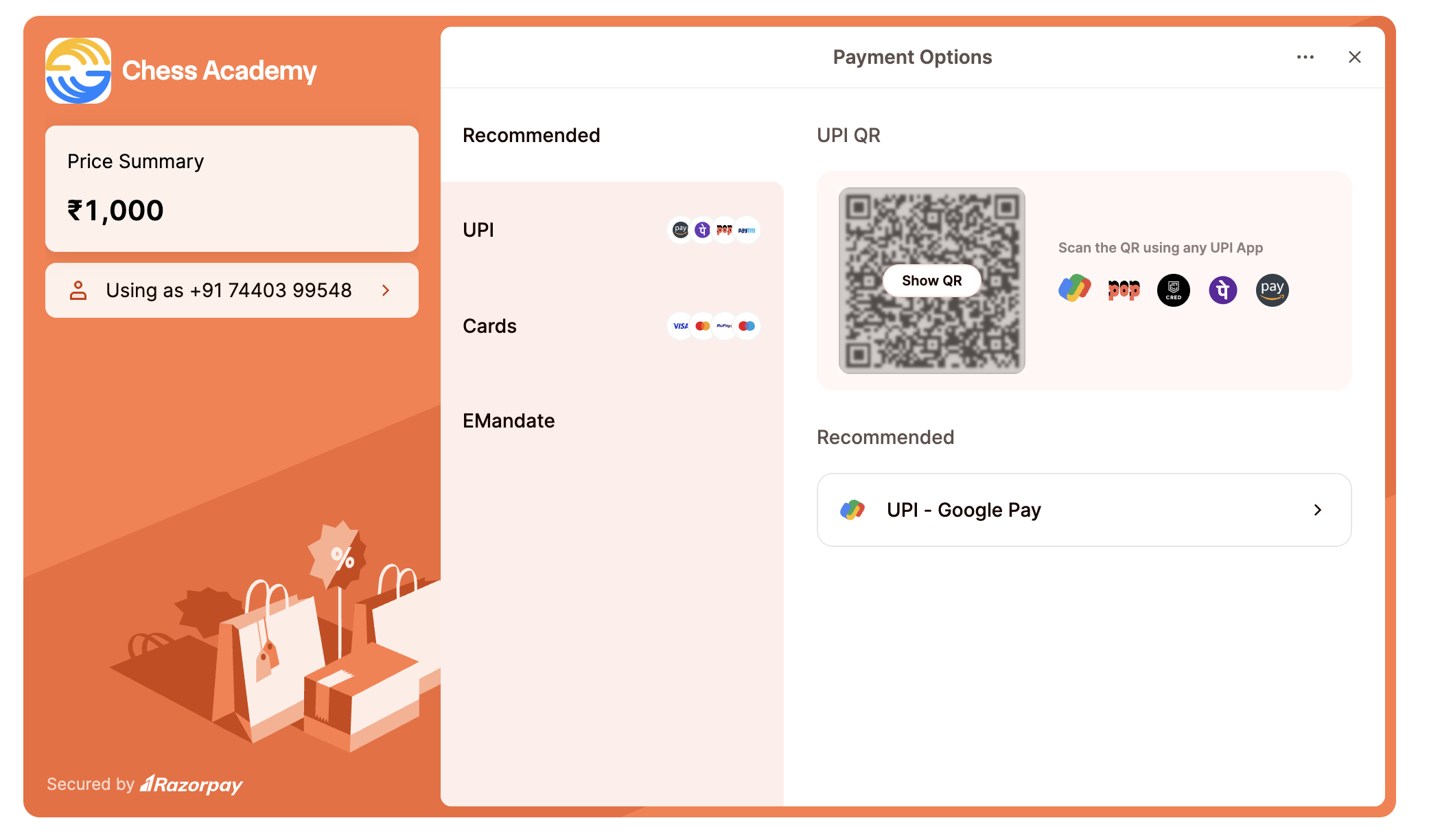
1. The page grays out and a secure Razorpay overlay modal pops up over the application.
2. The student's Name and Email are automatically pre-filled to save them time.
3. The student selects their preferred Indian payment method:
UPI (Google Pay, PhonePe, Paytm, etc. via QR code or VPA)
Credit / Debit Cards
Netbanking (Integration with major Indian banks)
Wallets
4. For Recurring setups, the bank will explicitly ask the user to authorize a mandate (e.g., e-NACH or UPI AutoPay) for the maximum plan amount.
Post-Payment Synchronization
Once the transaction is successful on Razorpay's end:
1. The overlay closes automatically.
2. The application briefly shows a "Verifying payment..." loading state. It communicates with the backend to securely sync the Razorpay Payment ID with the internal Invoice ID.
3. A success message appears: "Payment completed successfully!" (Or "Subscription set up successfully!").
4. The student is automatically redirected back to the My Fee Plans dashboard, where the previously pending invoice will instantly disappear from the "Pending Payments" list and appear in the "Payment History" ledger with a green checkmark.
> Edge Case Handling: If the payment succeeds but the network drops before synchronization completes, the system warns the user that the "sync is delayed and will be updated shortly," preventing panic. Backend webhooks act as a fail-safe to guarantee the invoice is eventually marked as paid.