The My Fee Plans page is the student's financial homepage. Unlike the complex, aggregated data views seen by administrators, the student interface is designed with a singular, clear purpose: Help the student understand exactly what they are enrolled in, what they owe right now, and what they have paid in the past.
The interface is clean, mobile-responsive, and utilizes clear visual cues (like colors and icons) to guide the student's attention.
1. The Summary Header
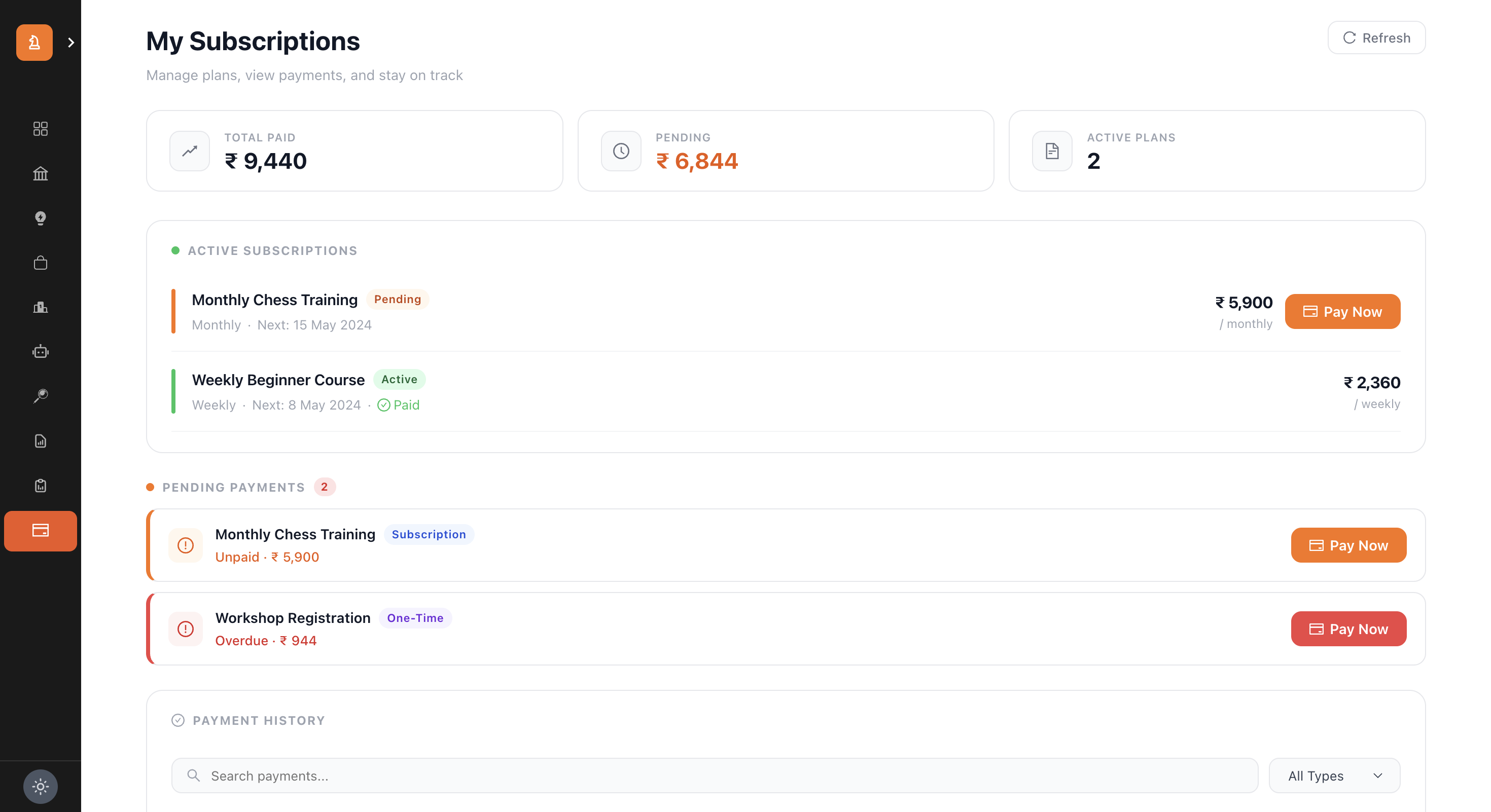
At the very top, the page greets the student with a high-level summary of their financial relationship with the academy. A "Refresh" button allows them to pull the absolute latest data from the server.
Three summary cards provide immediate context:
Total Paid: An encouraging metric showing the cumulative amount the student has successfully paid over their lifetime with the academy.
Pending (Orange): The most important number on the page. If this number is greater than ₹0, it is highlighted in a vibrant orange. It shows the total combined amount of all unpaid invoices currently demanding attention.
Active Plans: A simple count of how many ongoing recurring subscriptions the student is currently enrolled in.
2. Active Subscriptions Section
This section acts as a syllabus of the student's ongoing commitments. It lists every recurring plan they are assigned to.
Visual Architecture of a Subscription Row:
Status Line: A colored vertical line on the left edge indicates health (Green = Good/Paid, Orange = Pending Payment).
Plan Details: The bold name of the plan (e.g., "Intermediate Tactics") alongside the billing cycle (e.g., "Monthly").
Next Billing / Paid Status: If the current cycle is paid, a green checkmark explicitly says "Paid". It also displays the "Next: [Date]" so the student knows exactly when to expect the next bill.
Pricing: The recurring cost is clearly displayed on the right.
If the subscription has generated a new invoice that hasn't been paid, the green "Active" badge changes to an orange "Pending" badge. More importantly, a bright orange Pay Now button appears directly inside the subscription row, providing a frictionless path to checkout.
3. Pending Payments Section
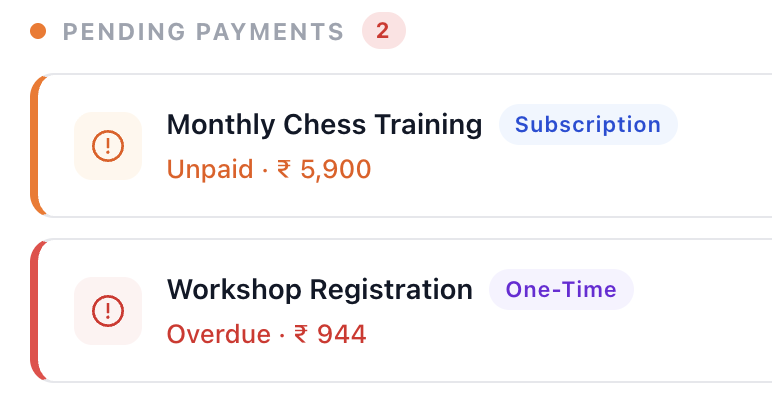
If the student owes money, this section aggressively (but politely) grabs their attention. It aggregates all unpaid invoices—both from recurring subscriptions and one-time ad-hoc fees.
Unpaid vs. Overdue States
The UI differentiates between "I have a bill due next week" and "I missed a payment."
* Unpaid (Orange): The invoice has been generated, but the due date is in the future. The UI uses soft orange accents, a warning icon, and an orange Pay Now button.
* Overdue (Red): The due date has passed. The UI escalates visual urgency using a stark red left border, a red exclamation icon, red typography stating "Overdue", and a red Pay Now button.
Details Provided
Each row shows the Invoice ID (or Plan Name), whether it is a "Subscription" or "One-Time" fee, and the exact amount owed.
4. Payment History Ledger
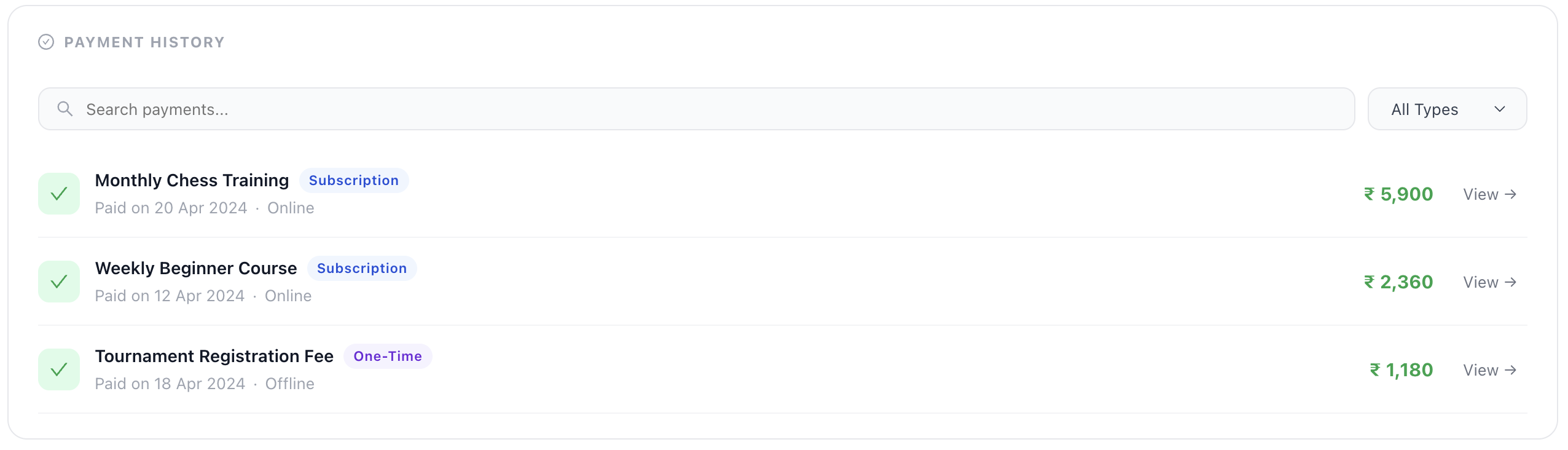
Transparency is key to avoiding disputes. The bottom section of the page is a comprehensive, searchable ledger of every successful payment the student has ever made.
Features of the History Ledger:
Search & Filter: Students can search for specific payments by plan name or invoice number using the search bar. They can also use a dropdown to filter the view between "Subscription" payments and "One-Time" payments.
Row Details: Each successful payment is marked with a green checkmark icon. It details the Plan Name, the exact date it was "Paid on", and critically, the Method.
Online: Indicates the student paid via the portal's payment gateway.
Offline: Indicates they handed cash or a cheque to the admin, who manually recorded it.
Download Receipts: By clicking the View → button on any historical payment, the student can view the detailed invoice breakdown and download a formal PDF receipt for their own personal records or tax purposes.