
While the Admin: Fee Plans page is about managing pricing templates, the Subscriptions page is about managing the people enrolled in those templates.
Whenever you assign a Recurring Plan to a student, a unique Subscription is created. This page is the command center for monitoring, pausing, and terminating those ongoing billing relationships.
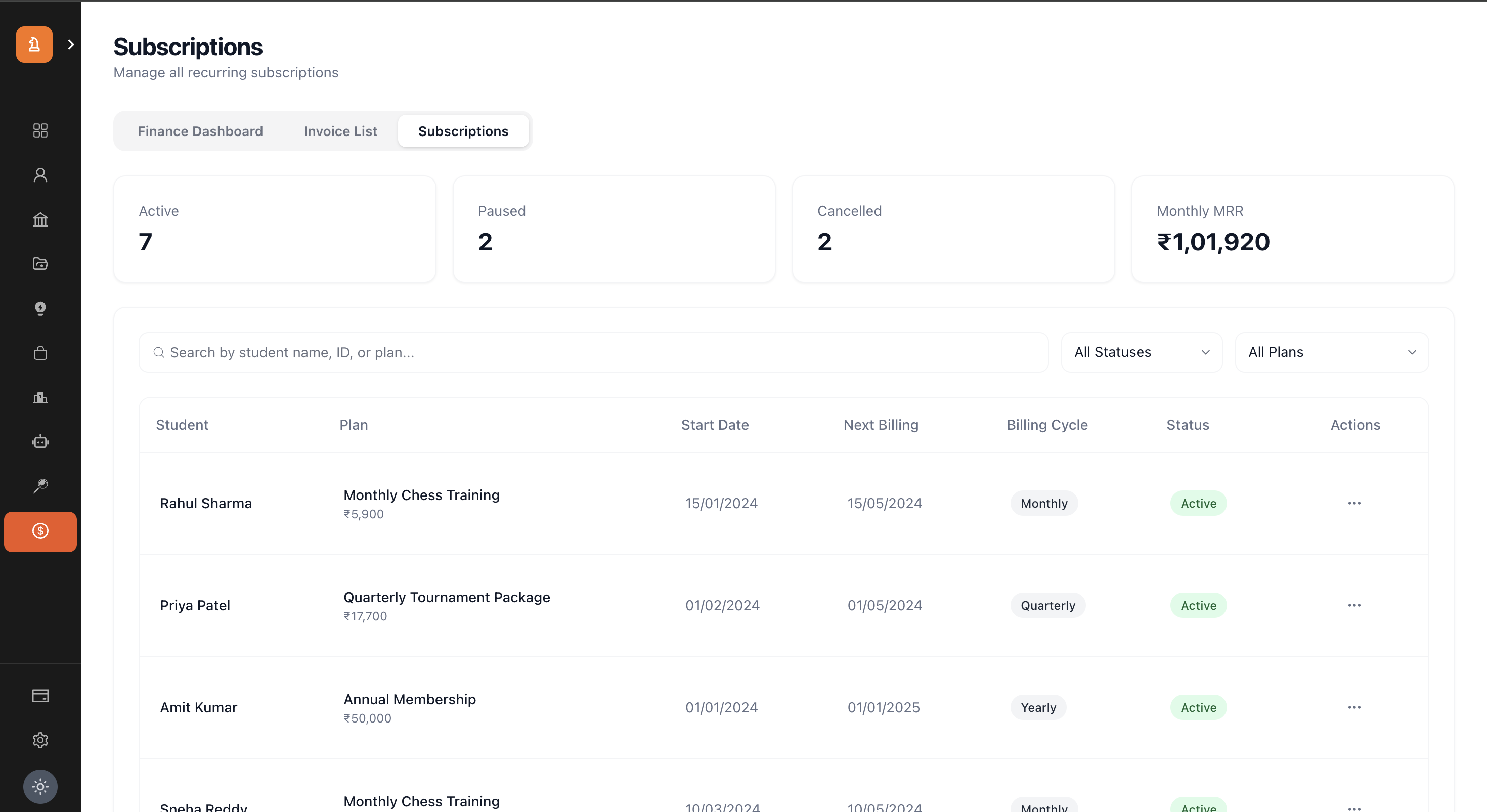
Subscription Summary Dashboard
At the top of the page, four critical metric cards summarize the state of your recurring revenue:
Active: The total number of subscriptions currently running normally. These will automatically generate invoices on their next billing date.
Paused: The number of subscriptions that have been temporarily frozen by an administrator. No invoices will generate for these until they are resumed.
Cancelled: Subscriptions that have been permanently terminated.
Monthly MRR (Monthly Recurring Revenue): This calculates the total financial value of all Active subscriptions. If you have 10 students on a ₹1,000/month plan, your MRR is ₹10,000.
The Subscriptions Data Table
The main interface is a comprehensive list of every subscription in the system.
Table Columns
Student: The name of the student holding the subscription.
Plan: The name of the Fee Plan they are enrolled in, alongside the recurring cost (e.g., "₹2,500").
Start Date: The exact date the subscription was initiated (when the admin assigned the plan).
Next Billing: A critical column. This shows the exact date the system will automatically generate the next invoice. If the status is cancelled, this will show as "N/A".
Billing Cycle: A badge indicating the frequency (Monthly, Quarterly, etc.).
Status: A color-coded badge indicating the current state of the subscription.
Understanding Subscription Statuses
Active (Green): Running perfectly. Invoices will generate on the Next Billing date.
Paused (Orange): Temporarily halted. The system ignores this subscription when generating scheduled invoices.
Overdue (Red): The subscription is technically active, but the most recently generated invoice has passed its due date without payment. This requires follow-up.
Cancelled (Grey): Permanently stopped.
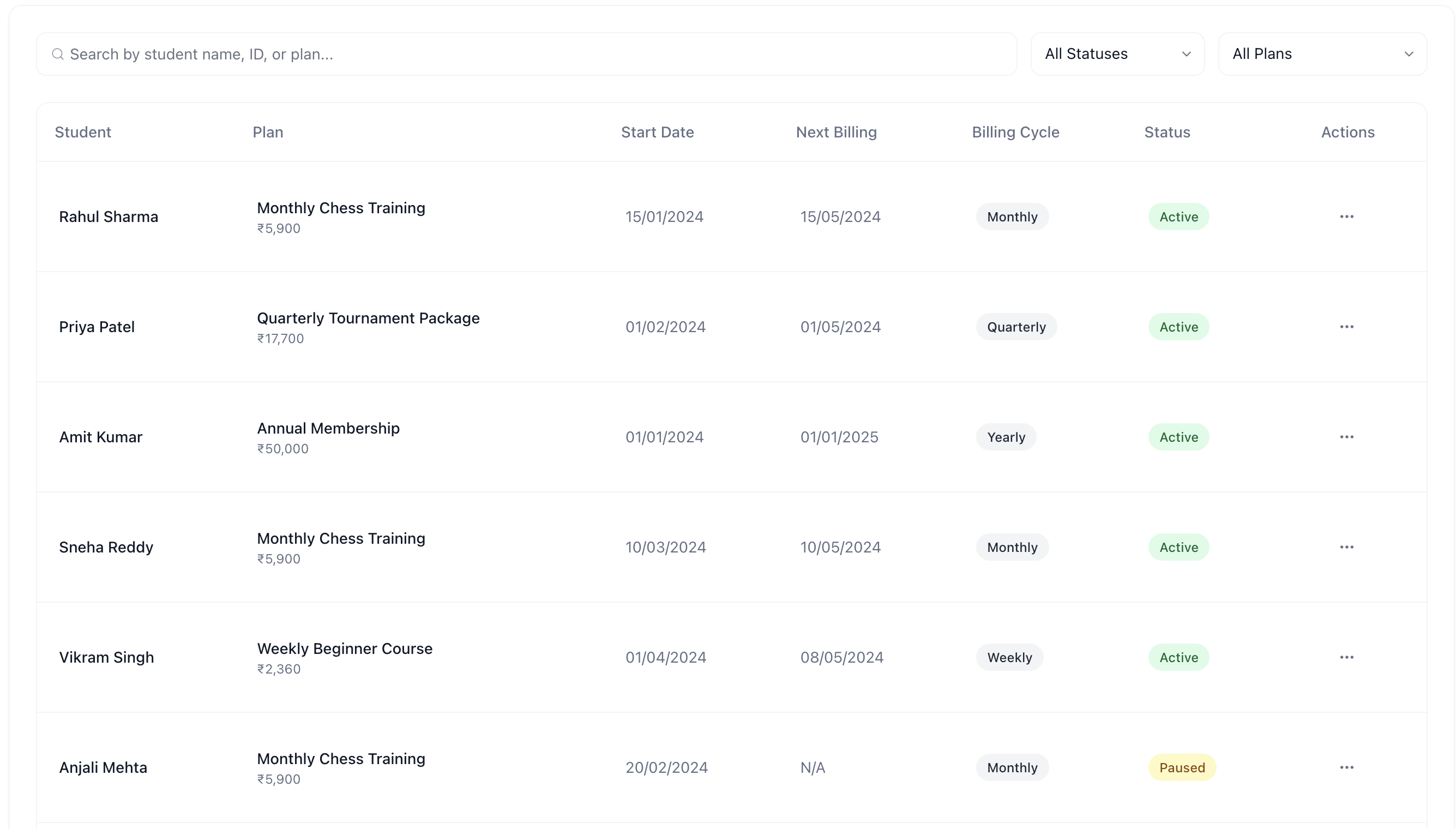
Search and Filter Mechanics
When dealing with hundreds of students, finding the right subscription is vital.
Global Search: Type a student's name, their unique ID, or the name of a specific plan to instantly filter the list.
Status Dropdown: Quickly isolate all "Overdue" or "Paused" subscriptions.
Plan Dropdown: Filter to see everyone enrolled in a specific tier, like the "Annual Membership".
Subscription Management Actions
The true power of this page lies in the "Actions" menu (the three dots) at the end of each row. Depending on the current status of the subscription, different actions are available.
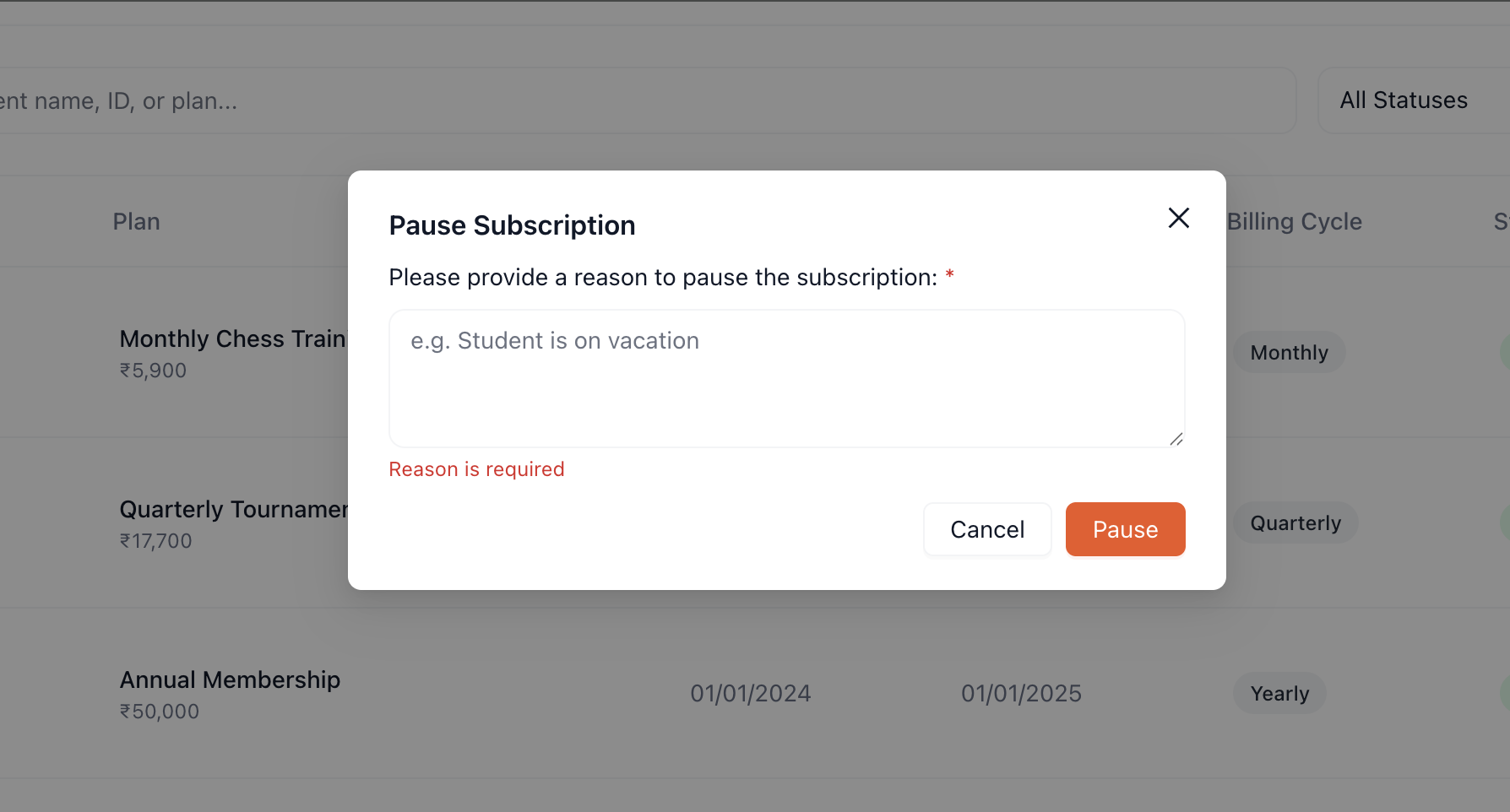
1. Pause Subscription (Available on Active)
Life happens. A student might travel for a month or take a temporary break due to exams. Instead of cancelling and losing their history, you can Pause them.
Workflow: Click Pause -> A modal appears demanding a "Reason" (e.g., "Student traveling to Europe for summer").
Result: The status changes to Paused. The system halts the automatic invoice generator for this specific subscription.
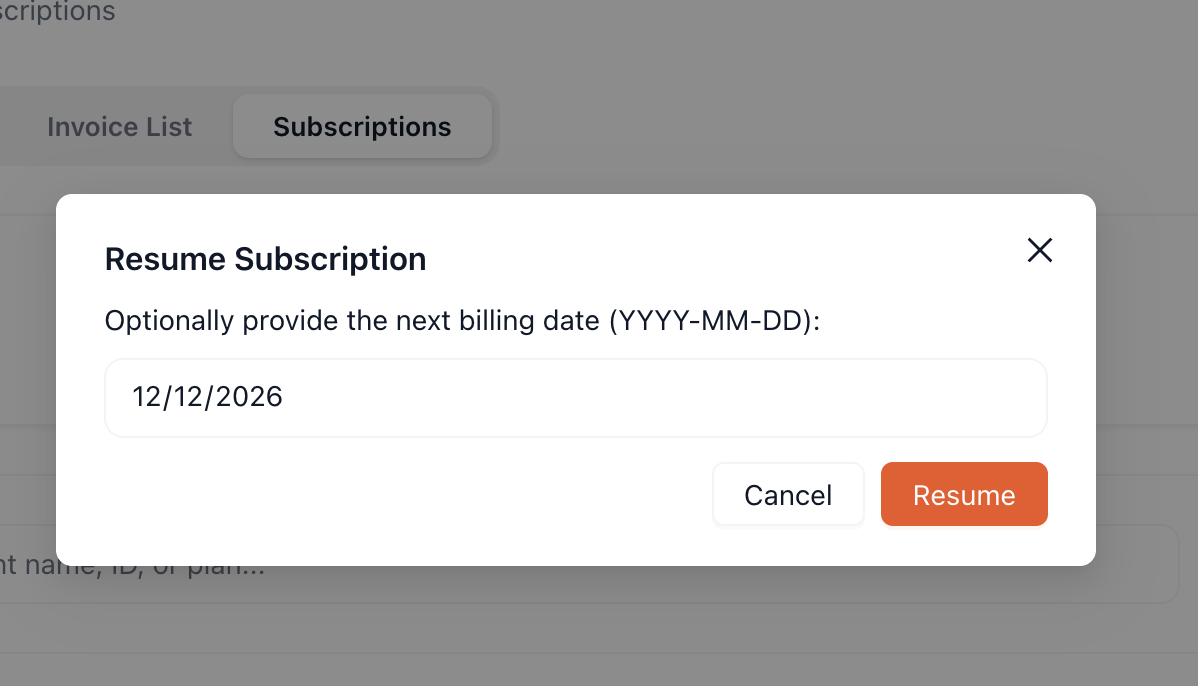
2. Resume Subscription (Available on Paused)
When the student returns, you must restart their billing.
Workflow: Click Resume -> A modal appears offering a "Next Billing Date" override.
The Override feature: If left blank, the system calculates the next billing date based on today. However, if you agree that their next bill should be on the 1st of next month, you can explicitly select that date using the calendar input.
Result: Status returns to Active, and the automated invoice engine re-engages.
3. Cancel Subscription (Available on Active/Paused/Overdue)
When a student officially drops out or requests to stop the service.
Workflow: Click Cancel -> A modal appears with a stern warning that this cannot be undone, requiring a reason (e.g., "Financial constraints" or "Moved out of city").
Result: Status changes to Cancelled. No future invoices will ever be generated. *Note: Cancelling a subscription does not automatically void past unpaid invoices; those remain owed unless manually cancelled on the Invoices page.
4. Change Plan (Coming Soon)
A planned feature to allow seamless upgrading (e.g., Basic to Premium) or downgrading without breaking the subscription continuity. Currently, administrators are advised to Cancel the old subscription and assign the new Fee Plan via the Fee Plans page.