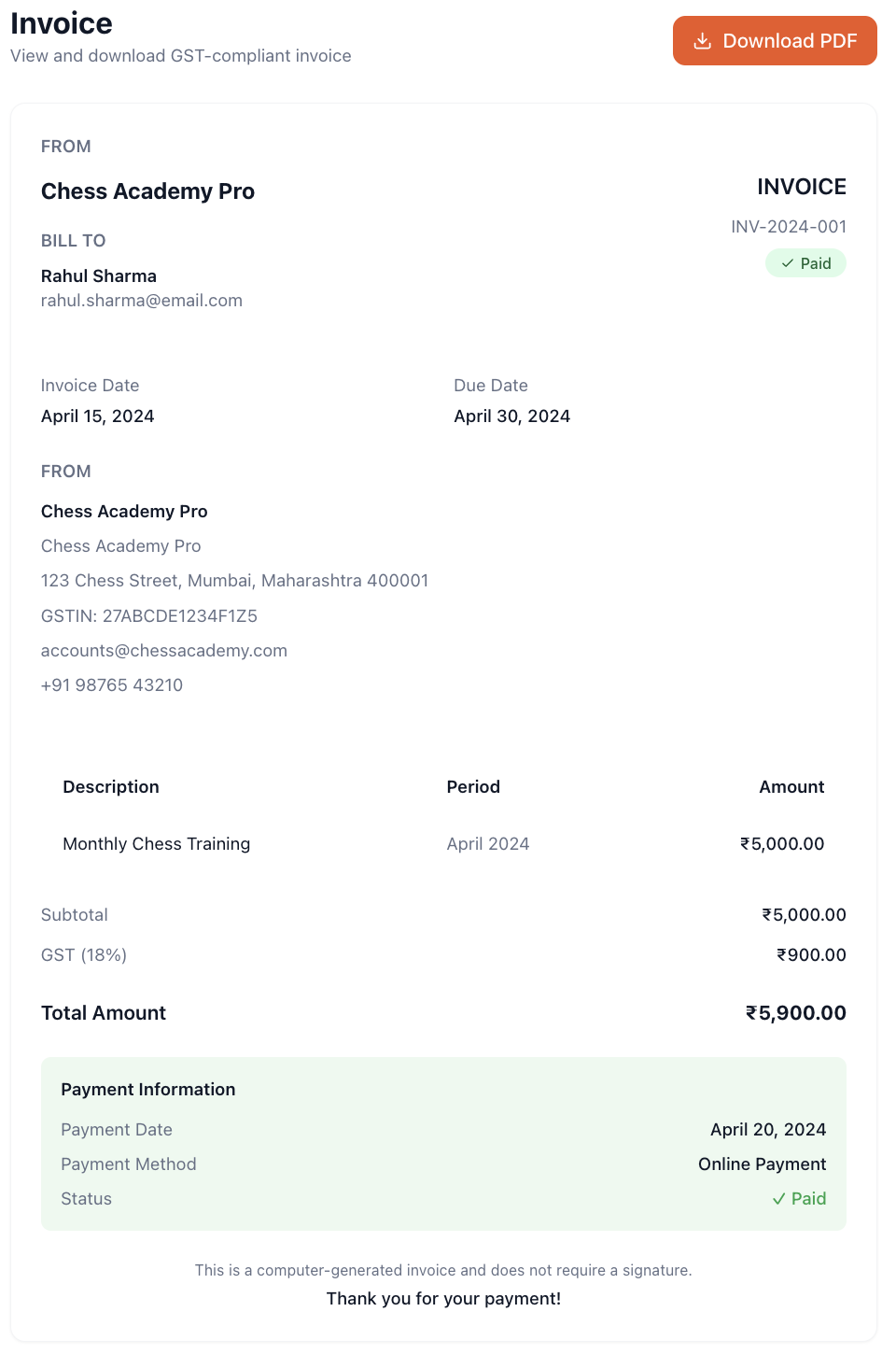
The Invoices page is the ultimate source of truth for the financial ledger. Every single bill that is requested from a student, whether it was generated automatically by a recurring subscription engine at midnight, or generated manually because an admin assigned a one-time tournament fee, lands in this master list.
This page is designed for accounts receivable management: tracking what is owed, marking things as paid, and following up on delinquencies.
Invoice Summary Dashboard
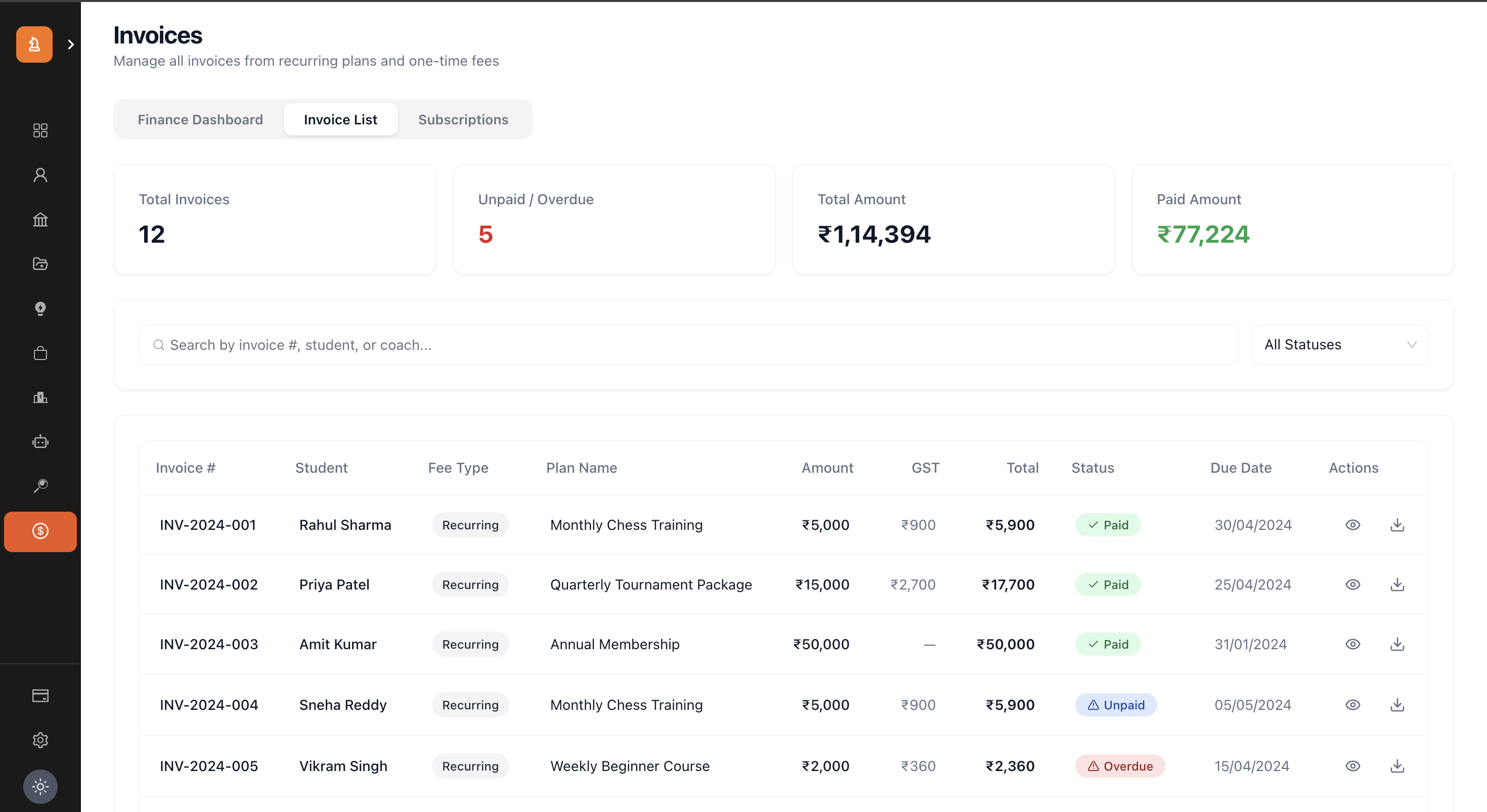
Before diving into individual rows, the top of the page provides four crucial aggregate metrics to help administrators understand their cash flow at a glance:
Total Invoices: The absolute number of invoices generated in the system's history.
Unpaid / Overdue (Red): The most urgent metric. This represents the total number of invoices that require payment. The red color emphasizes that action (like sending reminders) may be required.
Total Amount: The cumulative financial value of all invoices generated.
Paid Amount (Green): The total financial value of all invoices that have been successfully settled.
Note: The difference between Total Amount and Paid Amount represents your outstanding accounts receivable.
Search & Filtering
With potentially thousands of invoices, robust filtering is critical.
Search Bar: Allows instant searching by Invoice Number (e.g., "INV-1042"), Student Name, Student ID, or even the assigned Coach's name.
Status Filter: A powerful dropdown to isolate invoices by their current state. Filtering by "Overdue" provides a direct call-list for collections.
The Invoice Ledger Table
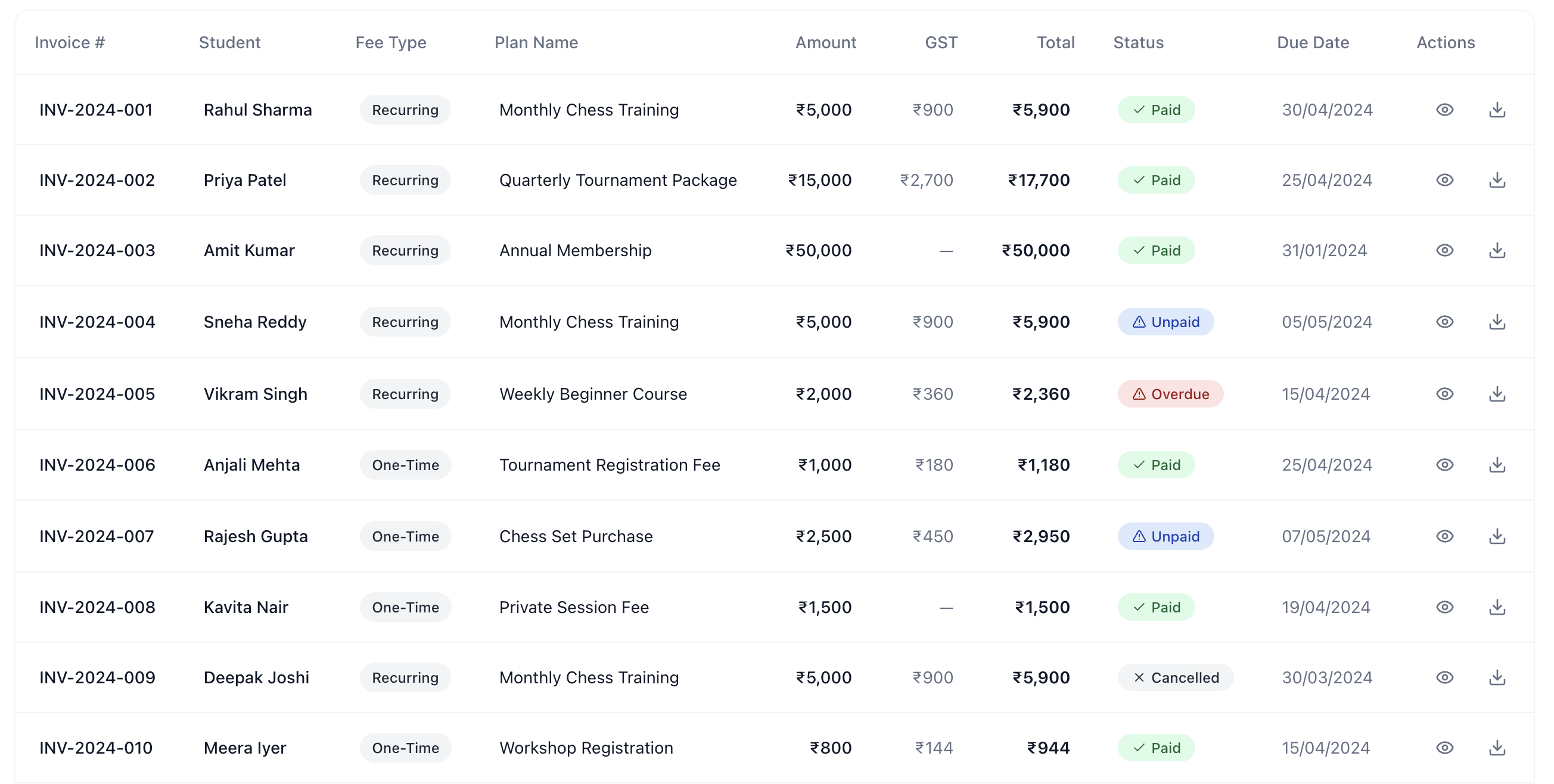
The data table provides a dense, information-rich view of every bill.
Key Columns:
Invoice #: A unique, sequential identifier generated by the system (e.g., INV-8492).
Student: Displays the student's name and their associated coach.
Fee Type: A badge indicating whether this bill originated from a "Recurring" subscription or a "One-Time" fee.
Plan Name: The specific service being billed (e.g., "Summer Camp 2024").
Financial Breakdown:
Amount: The base cost.
GST: The calculated tax amount (shows "—" if GST is disabled).
Total: The final, bolded amount the student is expected to pay.
Status: A color-coded indicator (Paid, Unpaid, Overdue, Cancelled).
Due Date: The deadline for payment.
Administrative Actions
The "Actions" column at the far right of each invoice row provides several tools for managing individual bills.
1. View Details (Eye Icon)
Clicking the eye icon takes the administrator to a dedicated, full-page view of the invoice, showing granular details, transaction histories, and exact timestamps of creation and payment.
2. Download PDF (Download Icon)
Administrators often need to share invoices via WhatsApp, email, or print them for physical records. Clicking this icon communicates with the backend server to generate a professional, formatted PDF document containing the organization's branding, the student's details, the line items, tax breakdown, and totals. The file is instantly downloaded to the admin's device.
3. Mark Paid Offline (More Actions Menu)
While the system supports automated online payments (via Razorpay), reality dictates that students will occasionally hand over cash, write a physical cheque, or use a direct bank transfer (NEFT/IMPS).
Since the system cannot automatically detect cash in hand, the admin must record it:
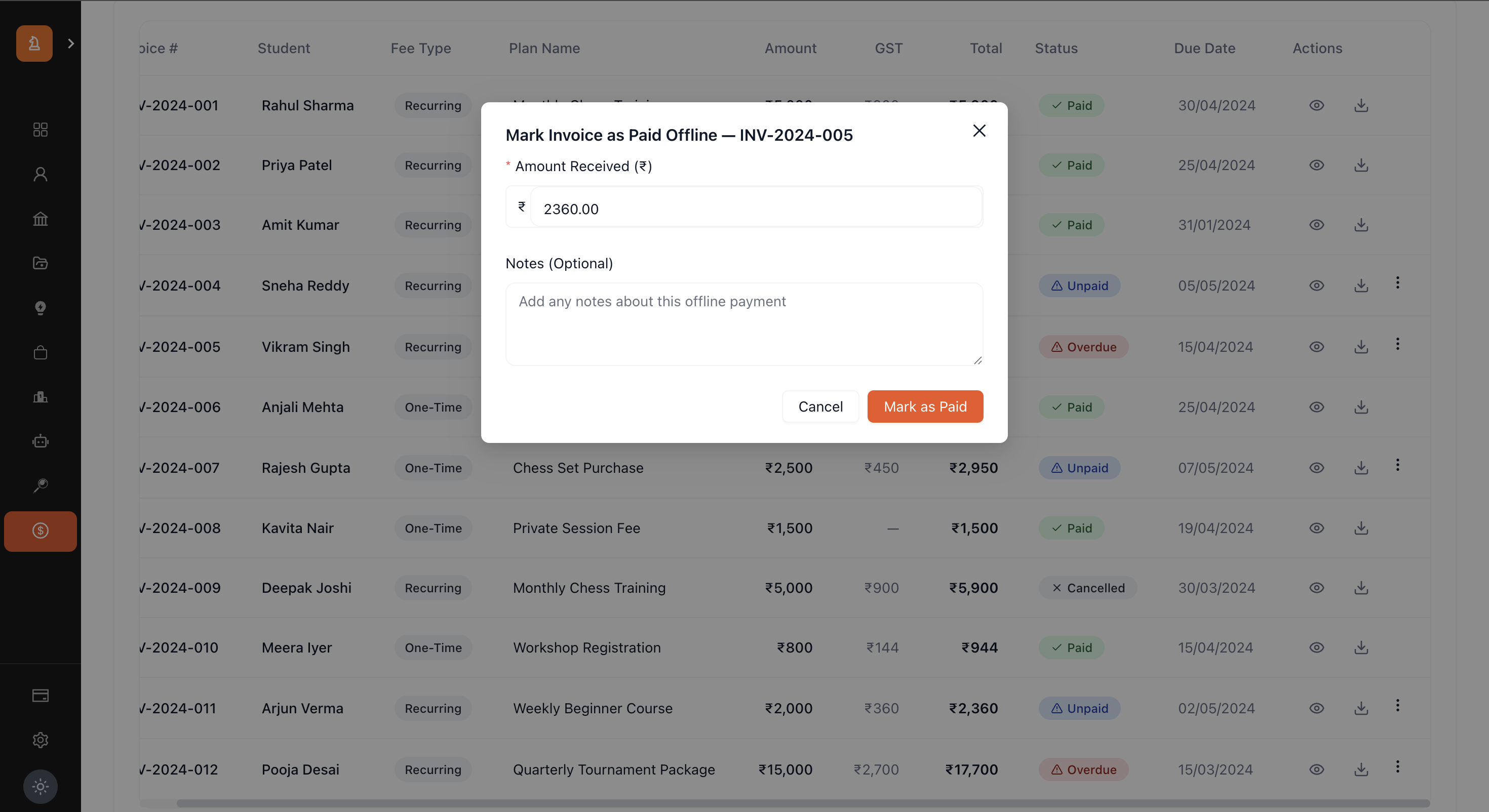
Workflow: Click "Mark Paid Offline" -> A modal opens.
Amount Received: The admin must input the exact amount received. (It defaults to the total invoice amount).
Notes: A crucial text field for auditing. Admins should input references like "Paid in cash to Receptionist Sarah" or "Cheque #987654 cleared on 12th Oct".
Result: The invoice status instantly updates to Paid, and the "Paid Amount" metric on the dashboard increments.
4. Cancel Invoice (More Actions Menu)
Mistakes happen. An admin might assign a fee to the wrong student, or the organization might decide to waive a fee as a courtesy.
Workflow: Click "Cancel Invoice" -> A red warning modal appears asking for confirmation.
Warning: This is a destructive action. Once cancelled, an invoice cannot be un-cancelled. It becomes permanently voided.
Result: The status changes to Cancelled (Grey), and the amount is removed from "Expected Revenue" calculations. If it was a recurring invoice, the subscription itself remains active; only this specific bill is voided.